How Do I Know if a Home Screen Icon is a Web App or Just a Shortcut?
Anyone who’s used an iOS Home Screen web clip—those icons you add to your iPhone or iPad’s Home Screen from Safari—might wonder: is this launching a full-fledged web app or just a shortcut opening Safari? Apple’s latest browser engine updates, especially in the new Safari 26 powered by WebKit, are blurring the lines between bookmarks and web apps more than ever. This post clears up the confusion by explaining how you can tell if a Home Screen icon on iOS is opening a true web app or just a basic shortcut, what’s changed in Safari 26, and why manifests and service workers still matter.
Understanding the Basics: What Is an iOS Home Screen Web Clip?
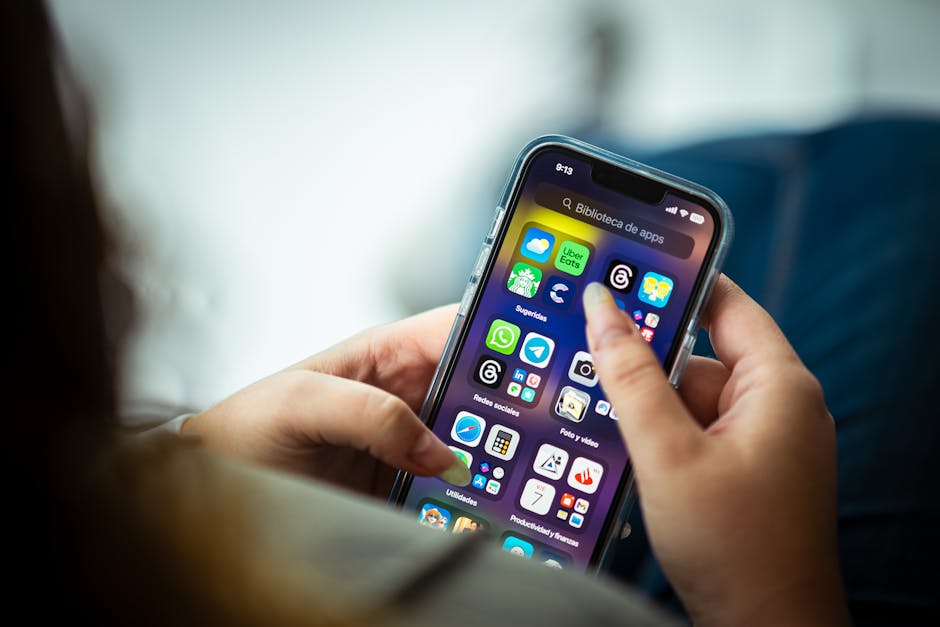
When you tap the “Share” button in Safari on iOS and select “Add robservatory.com to Home Screen,” you create an iOS Home Screen web clip. This adds an icon to your device’s Home Screen linking to a particular URL.
However, the behavior launched by this icon can vary widely:
- Shortcut: A simple bookmark that opens Safari and loads the page with all the usual browser interface.
- Standalone Web App: Opens in a dedicated, app-like window without browser UI elements—no URL bar, no navigation controls—making it feel like a native app.
The difference is crucial for user experience. App-like launch modes enable immersive interactions and often support offline use, push notifications, and better integration with the OS.
Standalone vs Browser Tab: How Does iOS Decide?
Before Safari 26, iOS Home Screen icons behaved mostly like shortcuts that opened browser tabs—complete with Safari’s chrome. Developers had to rely on certain HTML meta tags like apple-mobile-web-app-capable or proper manifest.json files to influence the launch mode and offer an “installed” experience.
Starting with Safari 26, which runs on the latest WebKit engine used by Apple’s Safari browser on iOS and iPadOS, Apple has simplified this:
- Default to Web App Mode: Now, Home Screen websites open as standalone web apps by default, meaning when you tap the icon, it launches in a minimal UI window rather than a browser tab.
- No Special Installability Requirements: Apple no longer requires strict PWA installability criteria or manifest validation for this app-like launch behavior.
This is a big shift. It means that even simple bookmarks added to the Home Screen open as if they were “apps,” eliminating the historic visual inconsistency users faced.
What Does This Mean Practically?
- Developers don’t have to jump through hoops to trigger standalone launch modes.
- From a user perspective, tapping Home Screen icons feels more “app-like” across the board.
- Safari’s UI is minimized, reducing distractions.
But Does Everything Just Work “App-Like” Now?
Before you start assuming that all Home Screen icons are flawless web apps, keep in mind:
- Manifest and Service Worker Still Matter: While standalone windowing happens by default, the web app’s capabilities depend heavily on having a proper manifest.json and a Service Worker.
- The manifest provides icons, splash screens, theme colors, and app metadata that refine how the app feels when launched.
- The Service Worker enables offline availability, push notifications, background sync, and loading speed improvements.
- Not All Experiences Are Equal: Without these additional layers, you get a blank standalone window displaying your website, but interactions might still feel like a traditional web experience.
So, while Safari 26 and Apple’s WebKit empower browser-first services to feel more “app-like” right out of the box, developers still need to embrace the full Progressive Web App (PWA) toolset to deliver rich, native-like experiences comparable to App Store apps.
How to Tell if a Home Screen Icon Is a Web App or a Shortcut
If you want to identify whether an iOS Home Screen icon is launching a standalone web app or just a browser tab, here are some practical steps and signs to look for:
1. Observe the Launch UI
- Standalone Web App: Opens in a minimal window without Safari’s address bar, back/forward buttons, or tab bar.
- Shortcut Opening Safari: Displays the standard Safari UI with URL bar and navigation controls.
2. Look for the “standalone” Display Mode in the Manifest
If you have developer tools or can inspect the site, check if the manifest.json contains this important property:
"display": "standalone"This is a strong hint that the site author intends it as a web app rather than a bookmark shortcut.
3. Check if a Service Worker Is Registered
Open Safari’s Web Inspector or use remote debugging on iOS to see if a Service Worker is active.
- Presence of a Service Worker indicates an intent to provide offline support and enhanced integration.
- Absence suggests the experience may be closer to a conventional website.
4. Assess User Experience Beyond Launch Mode
Try using the app offline or with flaky connectivity. If the app works smoothly, loads instantly, or shows content without internet, it’s a web app leveraging modern browser features.
Common Misconceptions About iOS Home Screen Icons
Many developers and users assume that adding to the Home Screen requires lengthy setup or special permissions. In reality, while manifests and service workers augment the experience, Apple’s recent Safari 26 update made app-like launch behavior the norm on iOS devices.
Here are some typical myths:
- “You must have a manifest to get standalone launch” – Now false; standalone launch is automatic.
- “Web apps can’t behave fully like native apps without App Store downloads” – No, browser-first services can feel app-like without being installed from the App Store.
- “Shortcuts are inferior and just open Safari” – Shortcuts open as standalone by default but might lack richer PWA enhancements.
Summary Table: iOS Home Screen Web Clip Launch Behavior Explained
Feature Legacy Behavior (Pre-Safari 26) Safari 26 & Later Behavior Launch Mode Browser tab with Safari UI, unless apple-mobile-web-app-capable set Standalone window by default for all added Home Screen icons Manifest Required for Standalone Yes, required to trigger app-like launch No, standalone mode happens even without manifest Service Worker Requirement No enforced requirement, but needed for offline and richer features No enforced requirement, but still vital for offline and enhanced UX Offline Support Only with Service Worker Only with Service Worker Push Notifications Not supported Not supported on iOS (as of June 2024) Appearance on Home Screen Icon from manifest or manually selected Same, improved support for adaptive iconsWhat Developers Should Do to Take Advantage
- Provide a Complete Web App Manifest: Set appropriate display, icons, background_color, and theme_color.
- Register a Service Worker: Improve offline capability and loading speed.
- Test on Real Devices: Use both iPhone and iPad with popular iOS versions running Safari 26 or later, because Apple’s nuances in WebKit can affect launch and rendering behavior.
- Design for Standalone Mode: Avoid UI elements that assume browser chrome (like “Open in New Tab” links).
Final Thoughts: The Era of Browser-First Apps on iOS
Apple has quietly but significantly shifted how iOS treats Home Screen web clips. Thanks to Safari 26 and the powerful WebKit engine, nearly any webpage can now launch as a standalone web app without complicated installability hoops. This levels the playing field for web developers and users alike.
Still, a truly polished app-like feel requires the scaffolding of manifests, service workers, and careful UX design. It’s no longer about “app vs web” as a moral debate but delivering the best experience through browser-first technologies.
Next time you tap an icon on your iOS Home Screen, you’ll know exactly what’s going on under the hood: whether you’re launching a simple shortcut or an immersive web app delivered by the modern web itself.